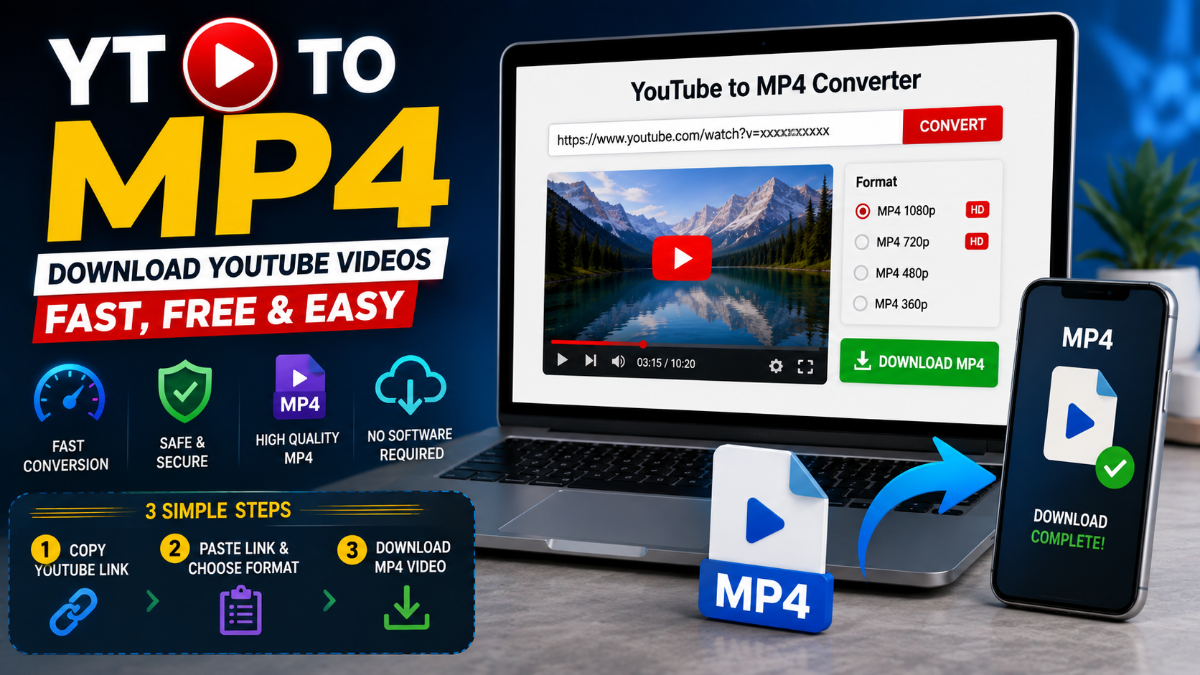
Quick answer: If you need an MP4 copy of a video you own, download an eligible upload through YouTube Studio. If you already have authorized video footage, convert it locally to MP4 using H.264 video and AAC-LC audio for broad compatibility. YouTube offline viewing is different from receiving a transferable MP4 file.
A YT to MP4 converter can be useful when you need a video that works on a phone, laptop, TV, projector, editing app, or WordPress website. The best settings depend on the source quality, intended device, available storage, and whether you need offline viewing, editing, publishing, or simple playback.
1. Know What You Need Before Using YT to MP4
The phrase “download YouTube video MP4” can mean different things. Identifying your end goal first prevents wasted time, poor-quality files, and compatibility issues.
| What you need | Best approach | Result |
| Watch a video without internet | Use YouTube’s official offline viewing feature | Viewable inside supported YouTube environments |
| Save a video from your own channel | Download through YouTube Studio | A local MP4 copy for eligible uploads |
| Edit client or creator footage | Request the master file or approved export | Better quality and clear permission |
| Prepare a file for TV or presentation | Convert an authorized local video | A compatible MP4 output |
| Make a video smaller | Export a lower-resolution or lower-bitrate version | Reduced file size |
| Publish video on a website | Use a licensed MP4 or embed the original platform video | Better control over rights and website performance |
A YouTube offline copy is designed for playback within YouTube. A regular MP4 is a transferable file that may play in media apps, upload to a website, or open in a video editor, depending on its codec and your rights to use it.
2. How Does YT to MP4 Conversion Work?
YT to MP4 conversion means placing video and audio into an MP4 file. The file extension is only one part of the result. Compatibility and quality also depend on the codecs, resolution, frame rate, bitrate, audio layout, and playback device.
An MP4 is a container format. It can contain compressed video, audio, subtitles, and metadata. H.264 and H.265 are common video codecs used inside MP4 files, while AAC-LC is a widely supported audio codec.
| Element | What it does | Common option |
| Container | Packages media tracks together | MP4 |
| Video codec | Compresses visual content | H.264 / AVC or H.265 / HEVC |
| Audio codec | Compresses sound | AAC-LC |
| Resolution | Sets image dimensions | 720p, 1080p, 4K |
| Frame rate | Controls motion timing | 24 fps, 30 fps, 60 fps |
| Bitrate | Controls data used per second | Mbps |
For broad compatibility, MP4 with H.264 video and AAC-LC audio is a practical choice. It works well on many phones, computers, smart TVs, projectors, browsers, and media players.
Read More: iPhone 18 Charger
3. Use the Right MP4 Settings for Your Device
Choosing the highest resolution or bitrate is not always useful. Match the output file to the screen, device, storage space, and purpose.
| Use case | Resolution | Video codec | Audio | Practical goal |
| Mobile viewing | 720p | H.264 | AAC-LC | Balanced quality and file size |
| General laptop use | 1080p | H.264 | AAC-LC | Clear video and broad compatibility |
| Smart TV or projector | 1080p; 4K only when supported | H.264 or H.265 | AAC-LC | Reliable large-screen playback |
| Limited storage | 720p or lower | H.265 if supported | AAC-LC | Smaller local files |
| Editing workflow | Match source resolution | Use source/master where possible | Use source/master | Preserve flexibility |
| Unknown device | 720p or 1080p | H.264 | AAC-LC | Reduce playback problems |
These settings are starting points, not fixed rules. A modern phone may support H.265 without problems, while an older TV may work more reliably with H.264 and AAC-LC.
For an important presentation or event, create a short test file and play it on the exact device you will use.
4. Download Your Own YouTube Videos Through YouTube Studio
If you uploaded the video, YouTube Studio is the most direct official option for saving an eligible copy. It is generally safer than using an unknown YouTube MP4 downloader website.
Steps to Download Your Own Video
- Sign in to the YouTube account that owns the video.
- Open YouTube Studio.
- Select Content from the menu.
- Find the video you want to save.
- Open the options menu beside the video.
- Select Download.
- Save the MP4 file and test it in a media player.
Eligible creator uploads may be downloadable as MP4 files in 720p or 360p, depending on video size and account conditions. Some videos may not be downloadable due to removal, policy, copyright restrictions, preapproved audio tracks, or download limits.
Keep the Original Master File
A YouTube Studio download can be useful for backup and minor edits. However, it may not be the best source for professional editing, colour correction, archive storage, or high-quality re-exporting.
Keep your original camera file, screen recording, editing-project export, or master file separately. Create new versions from the original file instead of repeatedly converting a compressed platform copy.
5. Convert an Authorized Video to MP4 Locally
You do not need a YouTube URL-based tool to convert a video file you already own or have permission to use. Local conversion gives you more control over privacy, quality, output settings, and file safety.
| Tool type | Suitable examples | Best for |
| Video converter | HandBrake | Creating smaller or more compatible files |
| Media player and converter | VLC Media Player | Basic playback, testing, and simple conversion |
| Command-line encoder | FFmpeg | Advanced settings, batch conversions, and repeatable exports |
| Video editor | DaVinci Resolve, Adobe Premiere Pro, Final Cut Pro | Editing and controlled export |
| Mobile video editor | Device-supported video editing apps | Basic trimming and mobile exports |
Use these tools only with files you are allowed to process. Having access to a conversion tool does not automatically give permission to copy, edit, publish, share, or monetize someone else’s content.
Simple Local Conversion Steps
- Open the authorized video in your converter, editor, or encoder.
- Select MP4 as the output container.
- Choose H.264 or AVC for broad device compatibility.
- Choose AAC-LC for audio.
- Keep the original resolution and frame rate unless you have a reason to change them.
- Adjust bitrate only when you need a smaller file or better quality.
- Export the MP4 file.
- Test video, audio, captions, duration, and playback on the target device.
6. Avoid Quality Loss During Conversion
A converter cannot add picture detail that does not exist in the original source. This is the most important rule when converting a YouTube video to MP4.
A 720p video exported as 1080p may have larger dimensions, but it will not gain real Full HD detail. In the same way, increasing bitrate on a low-quality source cannot restore details removed by earlier compression.
Better Quality Practices
- Start with the highest-quality authorized source available.
- Keep the original resolution when the target device benefits from it.
- Preserve the original frame rate unless compatibility requires a change.
- Avoid converting the same compressed file repeatedly.
- Make edits before creating the final export.
- Create separate versions from the master for mobile, web, TV, and client delivery.
- Test fast-moving scenes, text overlays, gradients, and sound before finalizing.
Common Quality Problems
| Problem | Likely reason | Better approach |
| Video looks blurry | Low-resolution source or bitrate too low | Use the best source and suitable bitrate |
| Fast scenes look blocky | Bitrate too low for movement | Increase bitrate moderately from the master |
| Dark scenes show colour bands | Aggressive compression | Use gentler compression and test gradients |
| Video looks soft on a TV | Source resolution is too low | Use the best source; do not rely on upscaling |
| Audio sounds weak | Heavy audio compression | Use AAC-LC with appropriate audio quality |
| Quality becomes worse after each export | Repeated re-encoding | Create new versions from the original master |
7. Fix Common MP4 Playback Problems
The .mp4 extension alone does not guarantee that a video will play correctly. Problems can occur because of the video codec, audio codec, frame rate, resolution, video profile, HDR setting, colour format, or media player.
No Sound but Video Plays
The target device may not support the selected audio codec or audio-channel layout. Re-export the authorized source with AAC-LC stereo audio and test it again.
File Will Not Open or Playback Is Choppy
The device may not support H.265, the selected video profile, high frame rates, HDR, or the file resolution. For a compatibility test, try MP4 with H.264 video, AAC-LC stereo audio, a standard frame rate, and 1080p or lower.
Audio Is Not in Sync With Video
Variable frame-rate footage, damaged source files, interrupted exports, or timing changes during conversion can cause sync issues. Use a stable source, preserve frame rate where possible, and test the complete file.
File Is Too Large
Reduce resolution before using aggressive compression. For example, moving from 4K to 1080p can reduce file size more effectively than making a small bitrate adjustment.
If the target device supports it, H.265 may create a smaller file at similar perceived quality. However, H.264 remains the safer choice for older devices and unknown playback environments.
8. Understand Copyright, Permission, and Offline Downloads
Many YouTube videos are protected by copyright. A video being public does not automatically give permission to download, edit, republish, monetize, distribute, or use it commercially.
Before saving or converting a video, ask yourself:
- Do I own this video?
- Do I have permission from the creator?
- Does the licence allow my intended use?
- Is this only for official offline viewing?
- Will I publish, edit, distribute, or monetize the content?
- Is the content in the public domain or covered by a valid licence?
YouTube Premium Is Not a Transferable MP4
YouTube’s official offline feature is for watching videos through supported YouTube apps or browsers where the feature is available. It does not normally provide a regular MP4 file that you can move to a gallery, USB drive, video editor, WordPress media library, or other platform.
| Requirement | Best option |
| Watch offline in YouTube | Use YouTube’s official offline option |
| Download an eligible video you uploaded | Use YouTube Studio |
| Edit licensed or client footage | Use the source file provided by the rights holder |
| Create a smaller MP4 | Convert an authorized local file |
| Publish a video on a website | Use your own or properly licensed video |
9. Use YT to MP4 Tools Safely
Searches for YouTube to MP4 online tools can lead to sites with misleading download buttons, aggressive advertising, browser notification prompts, redirects, and unsafe software.
Follow these safety tips:
- Do not share YouTube, Google, email, banking, or payment passwords with an unknown service.
- Avoid browser extensions that are not necessary for local video conversion.
- Reject unexpected notification permissions and popup downloads.
- Check the file name and extension before opening a download.
- Be cautious if a supposed video arrives as an .exe, .apk, .dmg, or installer file.
- Use local conversion tools for personal recordings, client material, and sensitive footage.
- Keep an untouched backup of the original file.
- Scan unexpected files with updated security software when needed.
- Avoid services that force account sign-in, payment details, or software installation for a basic conversion.
Final Thoughts
The best YT to MP4 method depends on why you need the file. Use official offline viewing when you only want to watch through YouTube. Use YouTube Studio for eligible videos from your own channel. For editing, publishing, presentation use, or device compatibility, begin with an authorized source file and create the version you need locally.
For broad compatibility, MP4 with H.264 video and AAC-LC audio is a practical choice. Match the output to the original source and target device, avoid repeated re-encoding, protect your master file, and test the final MP4 before using it publicly or professionally.
Frequently Asked Questions
What is the best YT to MP4 format for most devices?
MP4 with H.264 video and AAC-LC audio is a practical format for broad compatibility. It works on many phones, laptops, smart TVs, projectors, browsers, and media players.MP4 with H.264 video and AAC-LC audio is a practical format for broad compatibility. It works on many phones, laptops, smart TVs, projectors, browsers, and media players.
However, playback can still vary based on resolution, frame rate, codec profile, HDR settings, audio channels, and the media player. If the video must work on an unknown device, create a short H.264 and AAC-LC test file first.
Can I use HandBrake to convert an authorized video to MP4?
Yes. HandBrake can convert authorized local videos into MP4 files with adjustable video codecs, resolution, frame rate, bitrate, and quality settings.
For broad compatibility, select MP4 output, H.264 video, and AAC-LC audio. Keep the original resolution and frame rate unless you need a smaller file or the target device has limitations. Always compare the exported version with the original for quality, file size, audio sync, and playback.
Can VLC convert a video file to MP4?
Yes. VLC Media Player includes conversion options for local files. It can be useful for basic MP4 conversion, playback testing, and format checks.
Open the authorized file, use the Convert or Save feature, select a compatible MP4 profile, choose the output location, and test the finished file. For advanced quality controls, batch processing, or professional export settings, HandBrake, FFmpeg, or a video editor may be more suitable.
What is the difference between H.264 and H.265?
H.264 is a widely supported video codec and is usually the better option when compatibility is important. It works well across many older phones, TVs, browsers, media players, and editing tools.
H.265 can create smaller files at similar visual quality, especially for 4K or high-resolution videos. However, it may not work correctly on older devices. Use H.264 for unknown devices and use H.265 only after confirming that your destination device supports it.
Why is my MP4 file large even though the video is short?
File size depends on more than video duration. Resolution, frame rate, bitrate, video codec, audio settings, and scene complexity all affect file size.
A short 4K video at 60 fps can be much larger than a longer 720p interview. To reduce the size of an authorized file, lower resolution first when the target screen does not require extra detail, then reduce bitrate gradually. Test each version before reducing quality further.
Can I convert 720p video to 1080p without losing quality?
You can upscale 720p video to 1080p, but it does not create the original detail that was missing from the source. The video gets larger in pixel dimensions, but it does not become genuine Full HD.
Some tools may apply sharpening or smoothing, but the result cannot replace a real 1080p source. For better quality, use the highest-quality authorized original available.
What settings should I use for a video on a smart TV?
Start with MP4 using H.264 video, AAC-LC stereo audio, a standard frame rate, and 1080p or lower. This combination gives you a strong chance of reliable playback on many TVs.
Smart TV compatibility can vary by model, year, media player app, USB drive format, and codec support. Test the exact file on the TV before an event, class, presentation, or client meeting.
Can I use YouTube Premium downloads in WordPress?
No. YouTube Premium offline downloads are intended for playback within YouTube’s supported environment. They are not normal transferable MP4 files for WordPress, editors, USB drives, or direct website uploading.
For WordPress, use a video file that you own or have permission to host. Keep in mind that self-hosted MP4 videos can affect site speed, storage, bandwidth, and mobile performance.
Is it safe to use a YouTube MP4 downloader online?
Safety varies by website. Be cautious with services that request passwords, payment details, browser extensions, app downloads, notification permissions, or account access.
For authorized content, local conversion software is often safer because you do not need to upload private files or expose account information. Always check file extensions, keep security software updated, and retain a clean backup of the original video.
How do I improve MP4 quality without making the file too large?
Start with the best authorized source and create one clean export. Keep the original resolution and frame rate when they suit the target device, then choose a bitrate appropriate for the content.
Fast sports clips, gaming videos, action footage, and detailed visual scenes need more bitrate than a static interview, talking-head video, or slide presentation. If storage is limited, reduce resolution gradually or use H.265 only when the destination device supports it.