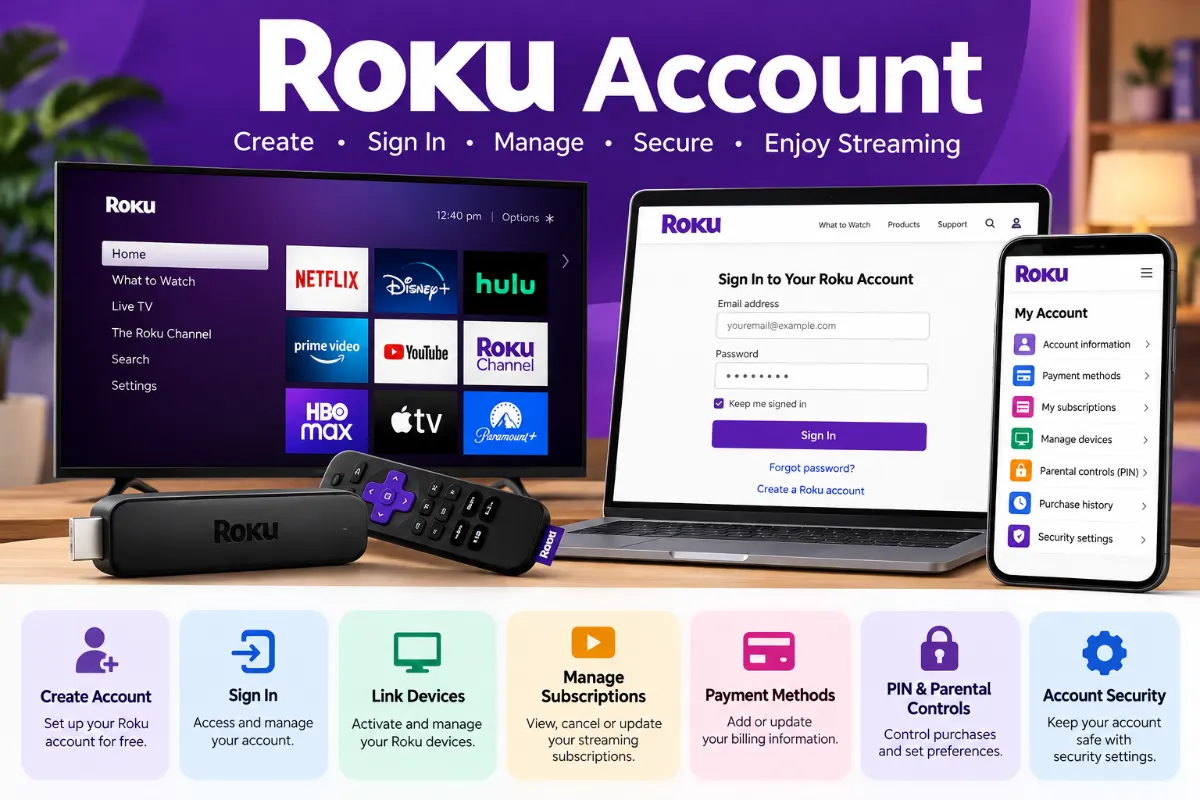
A Roku account lets you activate Roku devices, manage account information, check eligible subscriptions and purchases, control payment settings, set the PIN, and view linked devices. Creating an account is free; you only pay for optional subscriptions, rentals, or purchases you choose.
If you already have an account, use the official My Roku website to sign in. New users can create an account during Roku device setup or through Roku’s official signup page.
One important point: watching a streaming service on a Roku device does not necessarily mean Roku manages or bills that subscription. Knowing who manages a subscription can prevent many billing and cancellation problems.
What Is a Roku Account?
A Roku account connects your Roku TV or streaming player with your email, devices, preferences, purchases, and supported subscriptions.
You can use it to:
- Activate Roku devices
- Manage linked devices
- Review eligible subscriptions
- Check purchase history
- Update payment information
- Set a Roku PIN
- Change account information
The account itself does not require a monthly membership fee.
Roku account = free. Roku device = purchased separately. Paid streaming services = optional.
You can also link multiple Roku devices to one account, which can make household account management easier.
Roku Account Quick Actions
| What you want to do | Where to start |
| Sign in | My Roku |
| Create an account | Roku signup |
| Reset password | Account recovery |
| Check subscriptions | Manage subscriptions |
| Investigate a charge | Purchase history |
| Update payment method | Payment settings |
| Change PIN | PIN/Parental controls |
| Check devices | Device management |
If your problem involves your Roku email, password, PIN, device, or a Roku-managed purchase, start with My Roku. If you purchased a subscription directly from a streaming provider, you may need to manage it through that provider instead.
How to Create a Roku Account
Create a Roku Account Online
Creating an account is straightforward:
- Visit Roku’s official signup page.
- Enter a valid email address.
- Create a strong, unique password.
- Complete the requested account information.
- Configure PIN or parental-control preferences if needed.
- Add payment information if appropriate.
- Complete any requested verification.
Use an email address you regularly access because it can be needed for password recovery and account verification.
Create an Account During Roku Device Setup
When setting up a new Roku TV or streaming player, you can sign into an existing account or create a new one.
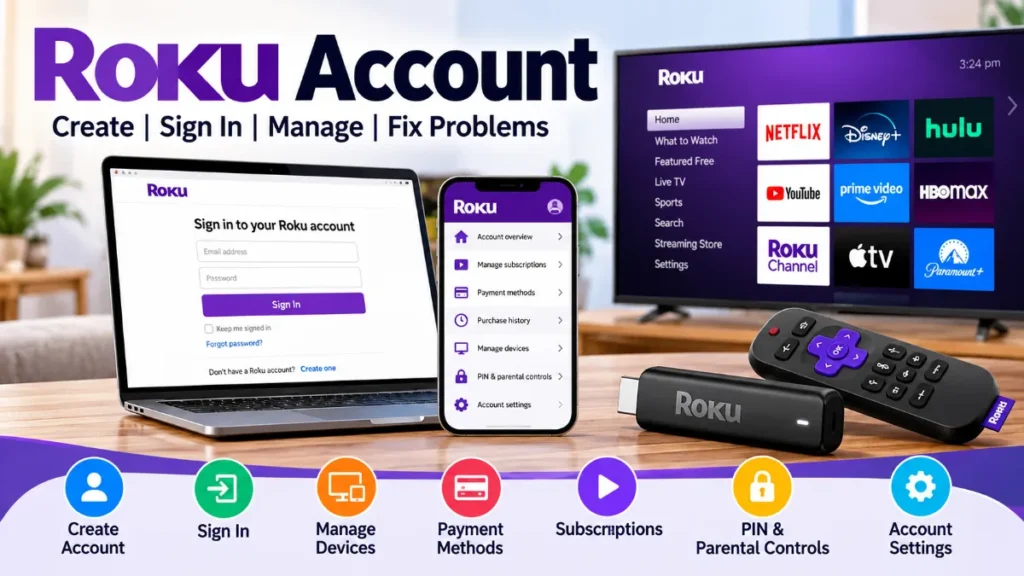
If you already have another Roku device, consider using your existing account rather than creating a second account unnecessarily.
Is a Payment Method Required?
Roku may offer the option to save payment information so you can purchase eligible subscriptions, rentals, or other content more easily.
Saving a payment method does not mean you are signing up for a monthly Roku account fee.
If several people use your device, consider requiring a PIN for purchases.
Avoid Fake Roku Activation Fees
Roku states that it does not charge users to create an account or activate a Roku device.
Be suspicious of websites or callers demanding an “activation fee,” “registration fee,” or similar payment merely to activate your device.
How to Sign In to Your Roku Account
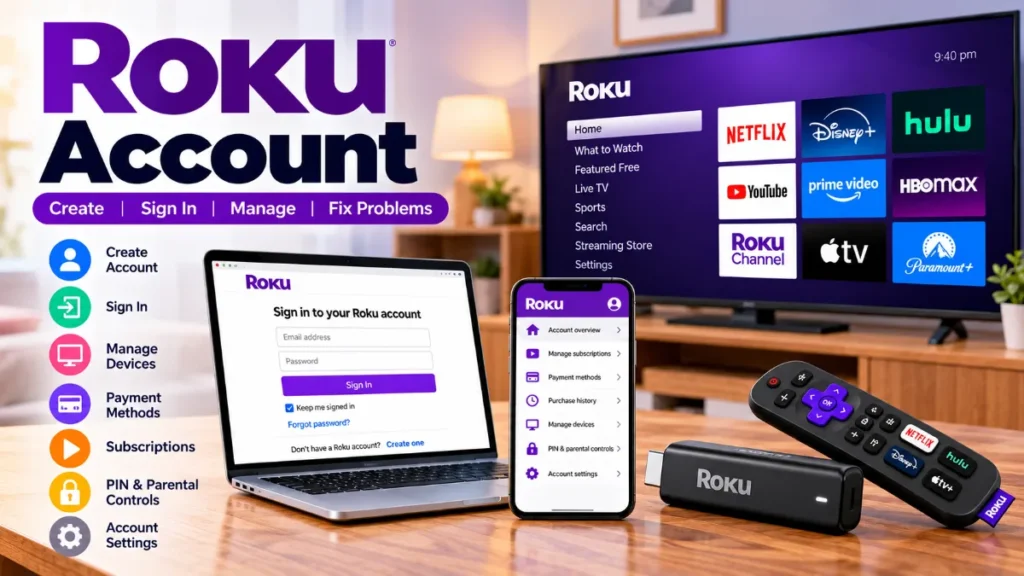
Go directly to the official My Roku website and enter the email address and password associated with your account.
Avoid entering your credentials on unofficial websites that imitate Roku login pages.
How to Find Your Roku Account Email
If you cannot remember which email you used, check your Roku device:
Home → Settings → System → About
Look for the email associated with the device.
This is especially useful if your household has several email addresses or Roku devices.
Forgot Your Password?
Use Roku’s official password-reset process. If the reset email does not arrive:
- Check spam and junk folders.
- Confirm that you entered the correct email.
- Check Settings → System → About to verify the email linked to your device.
If additional account verification is enabled, complete the verification process when prompted.
How to Manage Your Roku Account
Once signed in, you can manage important account settings from My Roku.
Change Your Email or Password
Open your account information and follow Roku’s current options for changing your email or password.
Use an email you control and a unique password. If you suspect unauthorized access, change your password and review your account activity.
View Linked Roku Devices
Check which streaming devices are connected to your account.
Review this list after selling, replacing, giving away, or losing a device.
Update Your Payment Method
Use the payment-method section to add or update eligible payment information.
If you want to remove a payment method, check whether active subscriptions or auto-renewing services need to be handled first.
Check Purchase History
Purchase history is particularly useful when investigating:
- An unfamiliar charge
- Subscription payments
- Movie or content purchases
- Purchases made by another household member
Compare the information with your bank or credit-card statement.
How Roku Account Subscriptions Work
One of the most important things to understand is the difference between watching through Roku and being billed or managed through Roku.
You might install a streaming app on your Roku TV but pay that streaming provider directly.
Roku-Managed vs Provider-Managed Subscriptions
| Situation | Where to check |
| Subscription is manageable through My Roku | Roku |
| You subscribed on provider’s website | Streaming provider |
| Bank statement names provider | Provider |
| You’re unsure who bills you | Check subscriptions, purchase history and bank statement |
| Subscription is missing | Check other accounts and provider |
Do not assume that every subscription watched on Roku can be canceled through Roku.
Read More: Oz to ML Perfume
How to See and Cancel Eligible Subscriptions
For subscriptions that Roku allows you to manage:
- Sign into My Roku.
- Open Manage your subscriptions.
- Locate the subscription.
- Select its management option.
- Turn off auto-renew or cancel as available.
- Confirm the change.
For applicable subscriptions, turning off auto-renew generally prevents the next renewal while access continues through the current paid period.
If the subscription isn’t listed, check whether you subscribed directly with the provider or used another account.
Roku PIN vs Roku Password
These are two different things.
| Feature | Password | Roku PIN |
| Account login | Yes | No |
| Main purpose | Account authentication | Control selected actions |
| Purchases | Not primary purpose | Can be required |
| App additions | No | Can be restricted |
| Format | Password | 4-digit PIN |
A Roku PIN can help control purchases, subscriptions, certain app additions, and supported parental-control functions.
When Should You Use a PIN?
Consider requiring one when:
- Children use the TV.
- Roommates share it.
- Guests have access.
- Payment information is stored.
- You want additional purchase controls.
Remember: your PIN cannot replace your account password for signing into My Roku.
Unexpected Roku Charge? What to Check
Don’t immediately assume an unfamiliar charge is fraud or cancel random subscriptions.
Use this order:
1. Check purchase history. Compare the amount, date, and service.
2. Check your bank statement. Determine whether Roku or another provider appears to have billed you.
3. Check other accounts. Another household email may have been used.
4. Ask household members. Someone may have started a subscription or purchased content.
5. Secure future purchases. Review your password, PIN, subscriptions, devices, and registered email.
If the charge cannot be identified after these steps, use the appropriate official Roku or streaming-provider support channel.
Roku Account Not Working? Troubleshooting Guide
| Problem | First thing to check |
| Can’t sign in | Email and password |
| Forgot password | Password recovery |
| Reset email missing | Spam folder and correct email |
| Subscription missing | Who originally sold it |
| Unknown charge | Purchase history |
| Wrong account | Settings → System → About |
| Unwanted purchases | PIN settings |
If you accidentally created multiple accounts, first identify which email belongs to each device and where the subscriptions and purchases are located. Don’t abandon an account before checking whether it contains an active paid service.
Using One Roku Account on Multiple Devices
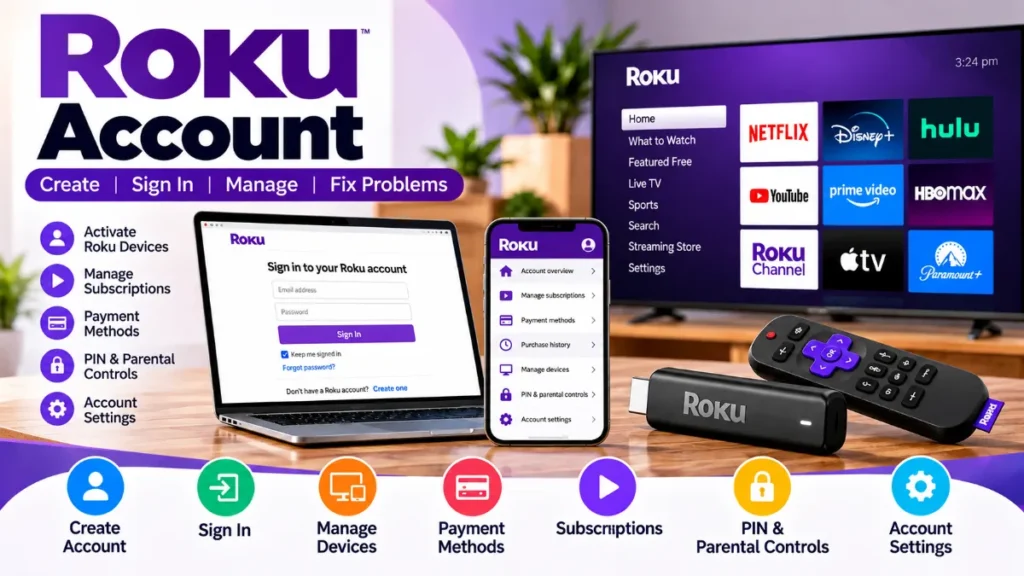
Multiple Roku devices can be linked to the same account.
Using one account can simplify:
- Purchases
- Supported subscriptions
- Payment information
- PIN settings
- Parental controls
- Device management
For example, a family might accidentally create three accounts for three Roku TVs. Later, they cannot find a subscription because it belongs to only one of those accounts.
Using one account where appropriate helps prevent this fragmentation. Separate accounts can still make sense when household members intentionally need independent setups.
Roku Account Security Checklist
Use these simple precautions:
- Use a unique password.
- Protect your registered email.
- Review linked devices.
- Remove devices you no longer own when appropriate.
- Check subscriptions periodically.
- Review unfamiliar purchases quickly.
- Set a purchase PIN on shared devices when appropriate.
- Never pay an unofficial activation fee.
- Enter credentials only on official Roku services.
If a Roku device is lost or stolen, review your account, devices, credentials, subscriptions, and payment security promptly.
Common Roku Account Problems in One Place
I Don’t Know Which Account My TV Uses
Go to Settings → System → About and check the associated email.
I See a Charge but No Subscription
Check:
Bank statement → Purchase history → Subscriptions → Other Roku accounts → Streaming provider
This sequence helps determine who actually billed you.
My Streaming App Works on Roku, but the Subscription Isn’t Listed
You may have subscribed directly with the streaming company. Roku can be the device you watch on without being the company that manages the subscription.
Do I Need a Different Account for Every Roku?
No. Multiple devices can use the same account. Separate accounts are optional when you intentionally want independent setups.
Why Doesn’t My Roku PIN Let Me Sign In?
Because the PIN and password serve different purposes. Use your account password—or password recovery-to access My Roku.
60-Second Roku Account Health Check
Before leaving your account, quickly confirm:
- Correct email address
- Working login
- Recognized linked devices
- Expected subscriptions
- Recognized purchases
- Current payment information
- Appropriate PIN settings
- Secure password and email
Frequently Asked Questions About Roku Account
1. Is a Roku account free?
Yes. Creating the account and activating a Roku device do not require an account activation fee. Optional subscriptions and purchases can cost money.
2. How do I sign in to my Roku account?
Visit the official My Roku website and enter the email and password associated with your account.
3. How do I find my Roku account email?
On your device, open Settings → System → About and look for the account email.
4. Can I use one Roku account on multiple TVs?
Yes. Multiple Roku devices can be linked to the same account, making centralized management easier.
5. Do I need a credit card for a Roku account?
The account itself is free. Payment information is used for eligible paid subscriptions, rentals, purchases, and related transactions.
6. What’s the difference between a Roku PIN and password?
The password authenticates your account login. The four-digit PIN controls selected purchases, app additions, subscriptions, and supported parental-control functions.
7. How do I check my Roku subscriptions?
Sign into My Roku and open subscription management. Remember that services purchased directly from another provider may not be managed there.
8. Why isn’t my subscription showing?
It may have been purchased directly from the streaming provider, through another account, or under a different billing arrangement.
9. How do I investigate an unfamiliar Roku charge?
Check purchase history, compare your bank statement, review other household accounts, and ask whether another user made the purchase.
10. What should I do if I have multiple Roku accounts?
Identify the email attached to each device and determine which account contains your subscriptions and purchases before making changes.